About Trim Marks (Crop Marks)
Creating Data
Designing for Folds
Printed items are produced on paper larger than the final size. Trim marks indicate exactly where the job should be cut, so they are essential for accurate finishing. If trim marks are missing, placed incorrectly, or misaligned, trimming errors may occur.
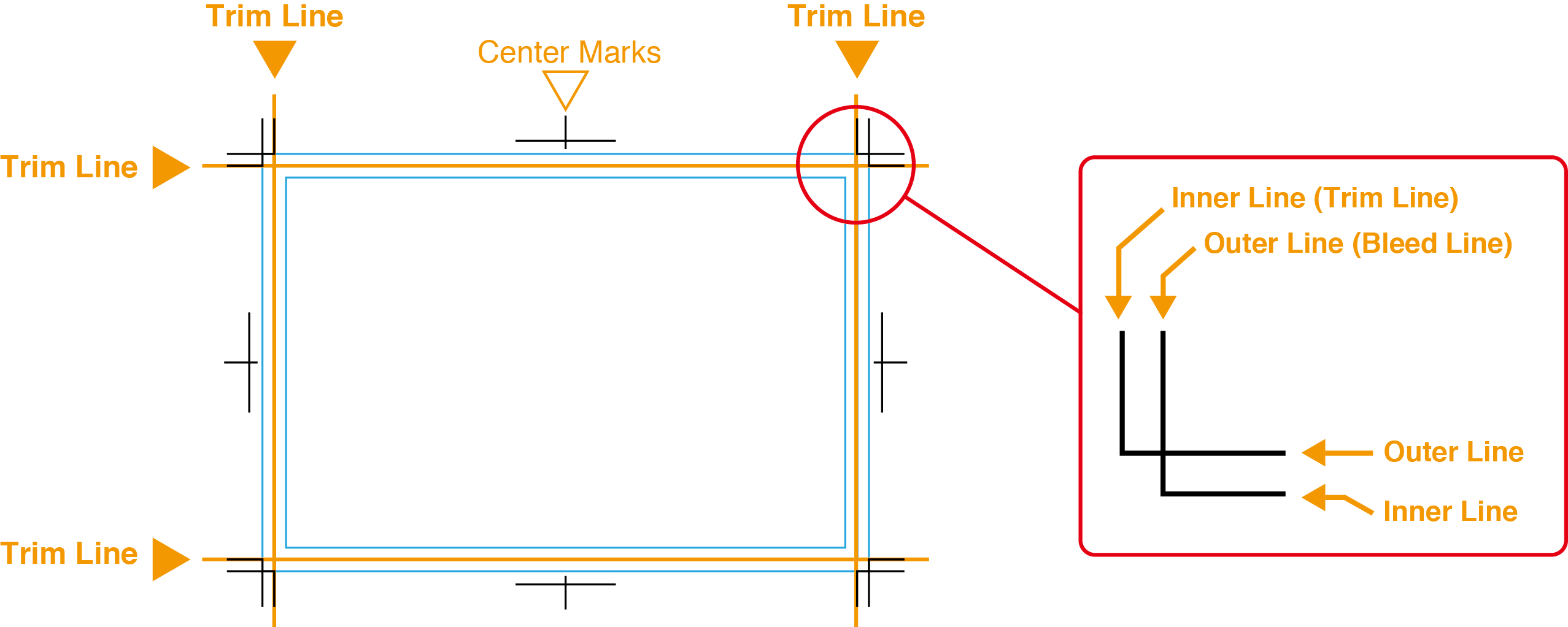
Trim marks also play an important role during printing. As CMYK inks are printed one color at a time, the marks help align each color plate correctly. For consistent print quality, please make sure trim marks are placed correctly.
How to Create Trim Marks (Illustrator)
Below is the general process for creating trim marks in Adobe Illustrator:
1. Draw a rectangle for the finished size
- Select the Rectangle Tool.
- Before drawing, set Fill = None and Stroke = None.
- Click once on the artboard → enter the exact finished size (width × height) → OK.
2. Select the rectangle
With the rectangle selected, proceed to the next step.
3. Apply trim marks
The method varies depending on your Illustrator version:
- Illustrator CS3
Filter → Create → Trim Marks - Illustrator CS4
Effect → Trim Marks
Then finalize them with: Object → Expand Appearance - Illustrator CS5 and later
Object → Create Trim Marks
(This is the current common method.)
If Your File Does Not Include Trim Marks
If your artwork’s document size already matches the ordered finished size, and we believe trim marks would be difficult for you to create, we may proceed without them.
However, including trim marks is always recommended for high accuracy.
About “Trim Marks Included” Orders
If you are submitting artwork with trim marks inside the file, please note the following:
- Select the final size when placing an order
Always specify the final delivered size as your “finished size.” - Include both inner and outer trim marks
Your file must include:- Inner trim marks (indicate the finished size)
- Outer trim marks (cutting guides used for trimming)
- These help ensure proper cutting accuracy.
- Always state the finished size
Please clearly indicate the desired finished size in the artwork and in your order notes. This helps prevent any misinterpretation during production. - Cutting is based on trim marks
As a rule, trimming is performed using your trim marks as the reference.
If no special instructions are provided, trimming will follow your artwork’s size and marks as supplied.



