Placing Images in Illustrator (Link vs. Embed)

Creating Data
Link & Embedded Images
When creating print data that includes images, Illustrator offers two main ways to place image files. Understanding these methods will help prevent issues such as missing images, data errors, or the need for resubmission.
Both methods are acceptable, but each requires different handling when preparing files for print.
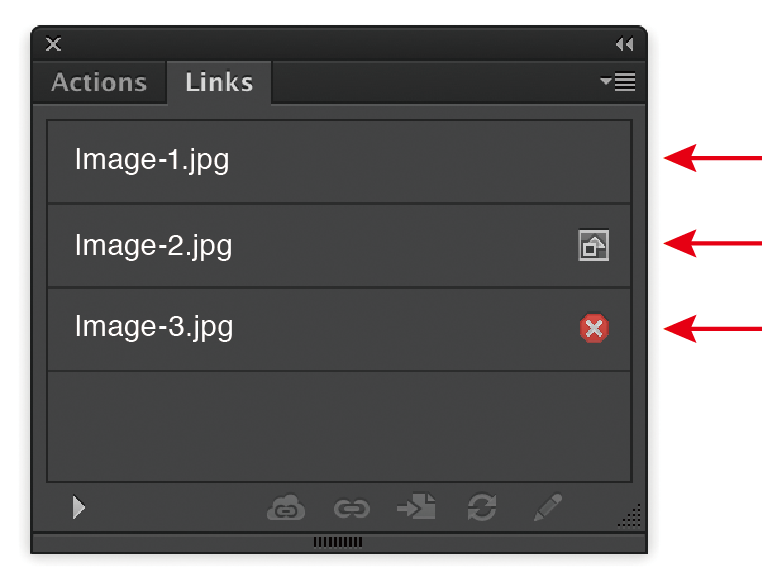
Linked file. (no icon)
Embedded file.(square icon)
Missing linked file. (red circle with ‘x’)
The Two Placement Methods: “Link” and “Embed”
When you place an image into Illustrator, it will be in one of the following states.
1. Linked Images (Link)
A linked image is not stored inside the Illustrator file itself. Instead, Illustrator only keeps a reference to the image’s file path on your computer. (An easy comparison: it is like carrying a note with an address written on it; ethe actual house exists somewher else.)
Benefits:
- Keeps the Illustrator file size small.
Important Note:
If you submit a file that uses linked images, you must send:
- the Illustrator file
- all linked image files used in the artwork
If any linked images are missing at the time of printing, they will not display correctly and may cause critical output errors.
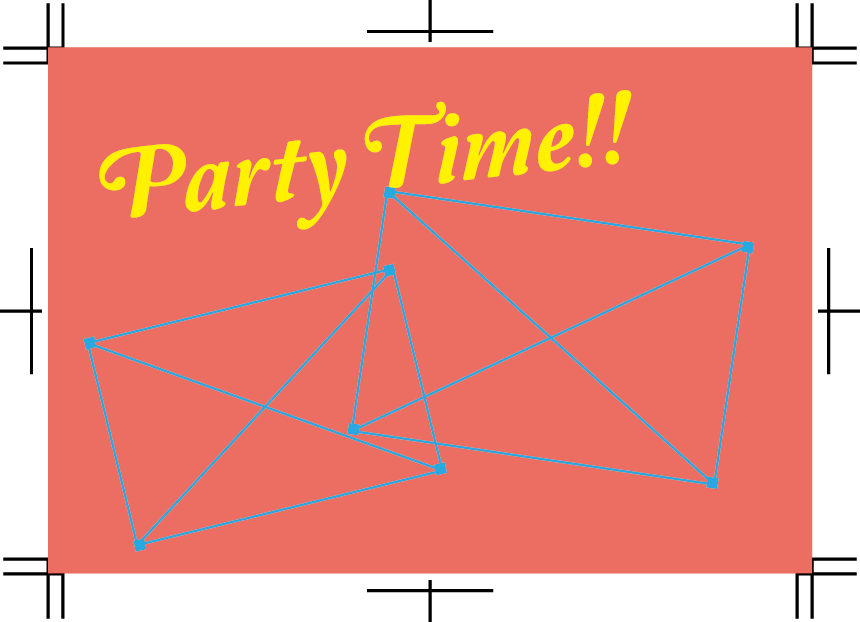
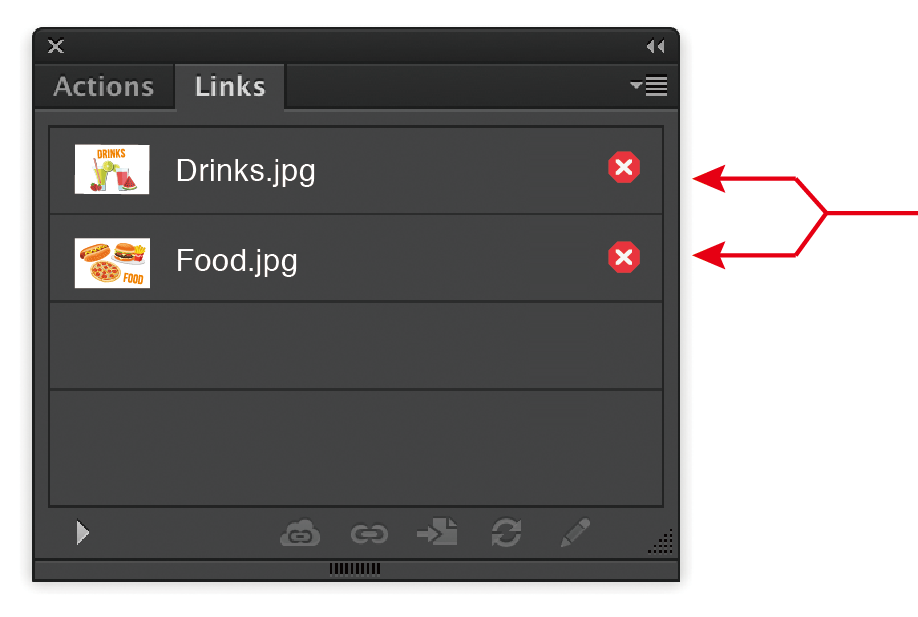

Missing linked files
How to check in Illustrator:
- Open the Links panel (Window → Links) to confirm which images are linked.
- If you choose to link images, ensure all listed files are included when you submit your artwork.
2. Embedded Images (Embed)
An embedded image is fully stored inside the Illustrator file.
Benefits:
- No risk of missing images or broken links during printing.
- You only need to submit the Illustrator file.
Points to note:
- File size becomes larger because image data is included inside the file.
How to embed in Illustrator:
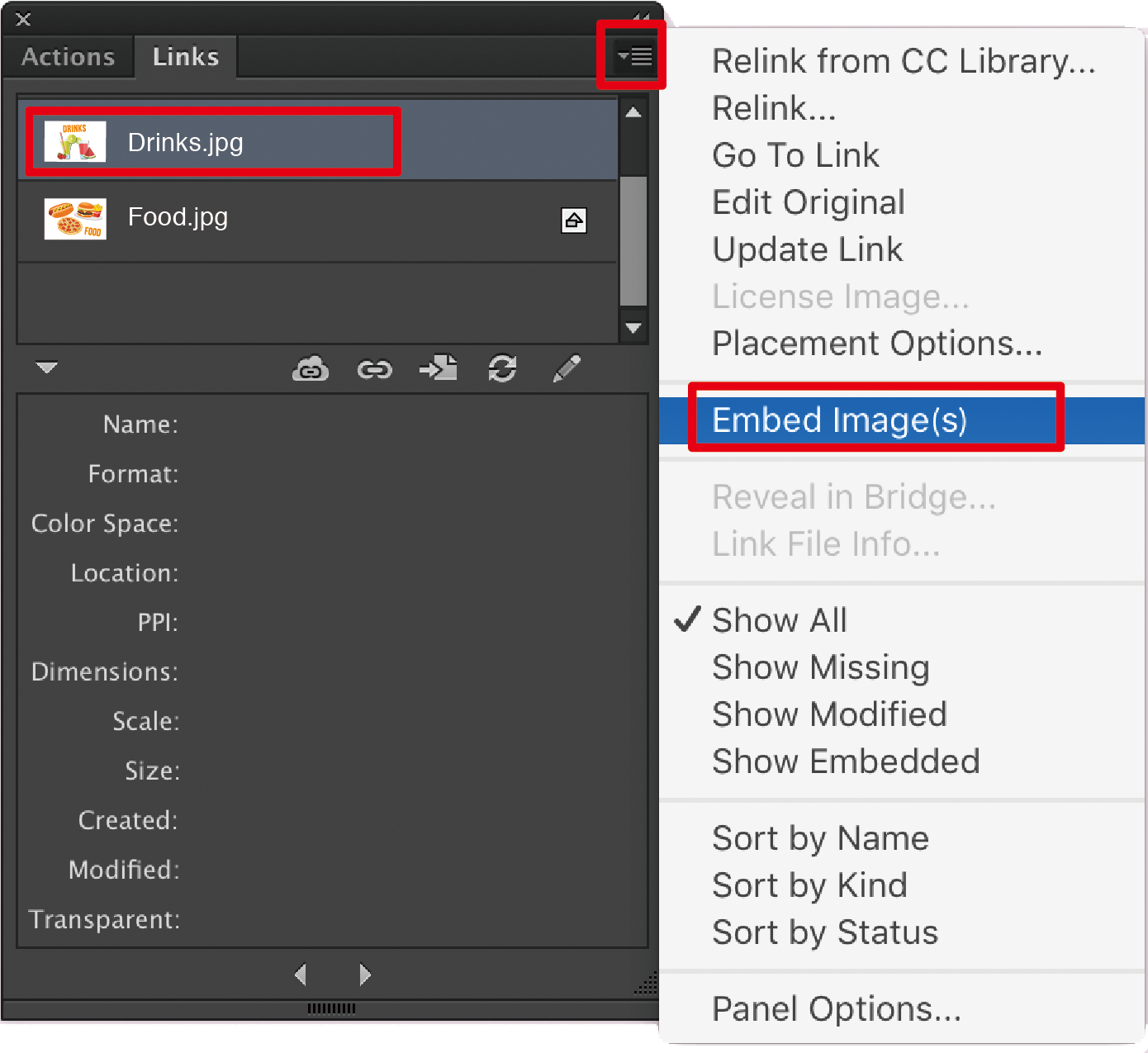
- Select an image and click Embed in the Links panel.
- The chain-link icon in the Links panel will disappear once the image is embedded.