Overprint

Creating Data
Overprint
Overprint refers to a process by which one color is printed on top of another color. When this happens, the bottom color can show through the top color.
When an object has been set with an Overprint fill in Illustrator, it allows one color/object to blend into another behind it. Most of the time, overprinting objects can produce undesirable results (ex: incorrect color, or distracting patterns).

In the example above, we start with a greenish rectangle. Then we position a magenta hexagon that overlaps a portion of the rectangle. When an Overprint fill is checked on, the part of the shape that overlaps blends the pink with greenish color to make a purplish color.

In the example above, you can see the hexagon shape does not overlap blend with the rectangular shape. The hexagon object on top 'knocks out' the overlapping shape of the rectangle, so the top color prints cleanly.
This is because the 'overprint' fill box was not checked.
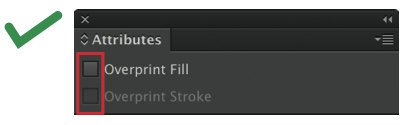

Important Note:
To prevent unexpected printing issues, please make sure the ‘Overprint Fill’ box is unchecked. (We do not check for overprinting in our data check process.).
If your design intentionally uses overprint, please be sure to mention this in the special instructions.
Possible Issues
When K100% objects are set to overprint, they may disappear or their color may shift, causing results that differ from what the customer intended.
❌️ Overprint ON
- Objects may disappear
- Colors may change
Solution: Please turn off the overprint ✔ settings.
⭕️ Overprint OFF
How to Check Overprint
Adobe Illustrator / InDesign:
- From the menu bar, select「View」→「Overprint Preview」.
* This allows you to check on-screen how the design will appear when printed with overprint applied
Overprint can be useful for preventing misregistration, but it can also cause unintended color changes or cause white objects to disappear. Please take extra care not to apply overprint to white objects or to colors other than K100%.



