Color Settings (Spot Colors vs. Process Colors)

Creating Data
Spot Colours
1. Process Ink vs. Spot Color
There are two main types of ink used in printing:
Process Ink (CMYK)
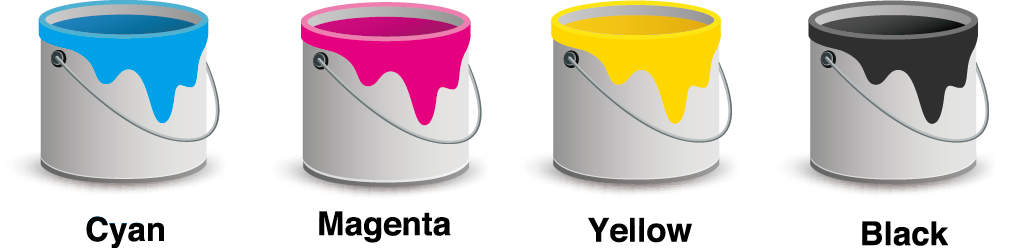
Cyan, Magenta, Yellow, and Black are combined to reproduce most colors.
All of our offset printing products use CMYK as the standard.
Spot Color (Special Ink)

Pre-mixed inks such as DIC or PANTONE, designed to reproduce a very specific color.
2. Risks When Spot Colors Are Left in Your File
If your submitted data still contains spot colors (DIC, PANTONE, etc.):
- CMYK printing cannot reproduce those spot colors accurately.
- The color may print as the wrong shade, appear very dull, or disappear entirely.
These issues occur because spot inks do not automatically convert to CMYK.
To avoid color problems, please convert all spot colors to CMYK before submitting your data.
Spot-to-CMYK conversion is not included in our data check, so the customer must make these adjustments.
How to Convert Spot Colors to CMYK in Illustrator
- Open Window → Swatches.
- In the Swatches panel, double-click the spot color you want to convert.
- In the Swatch Options window, change the settings:
- Color Type: Process Color
- Color Mode: CMYK
- Uncheck Global
- Click OK.
The small “dot” in the lower-right corner of the swatch icon disappears. This means the swatch is now CMYK.
After converting, make sure to review the color to confirm it appears as expected.
This process converts all objects using that swatch from Spot Color → CMYK.



