About Creating Outlines for Text

Creating Data
Text to Outline
When submitting print-ready data, one of the most important steps is converting text to outlines.
This prevents data-related issues and the need for resubmission, so please make sure to outline all text before sending your files.
What Does “Outlining Text” Mean?
“Outlining” is the process of converting text (font information) created in Illustrator or similar software into vector shapes (paths).
In other words, it transforms the text so that it is no longer treated as editable characters, but as artwork.
Why Is Outlining Necessary?
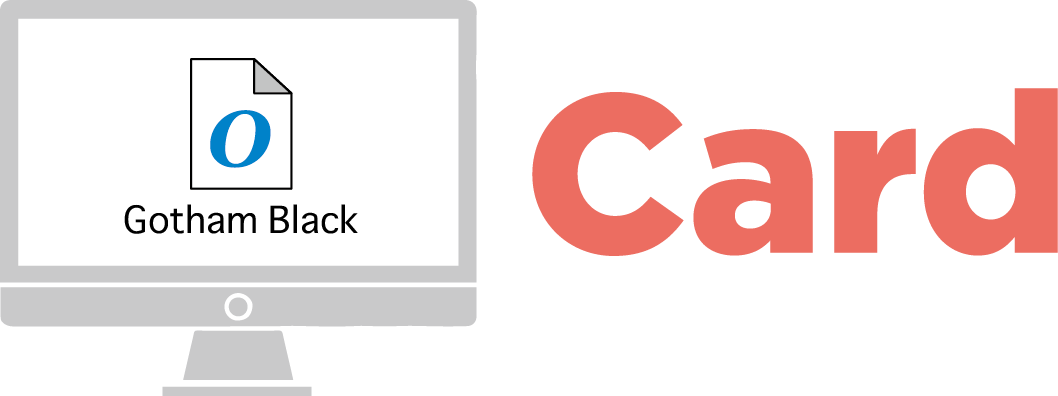
The fonts installed on your computer may not exist on the computers used in our printing facility.
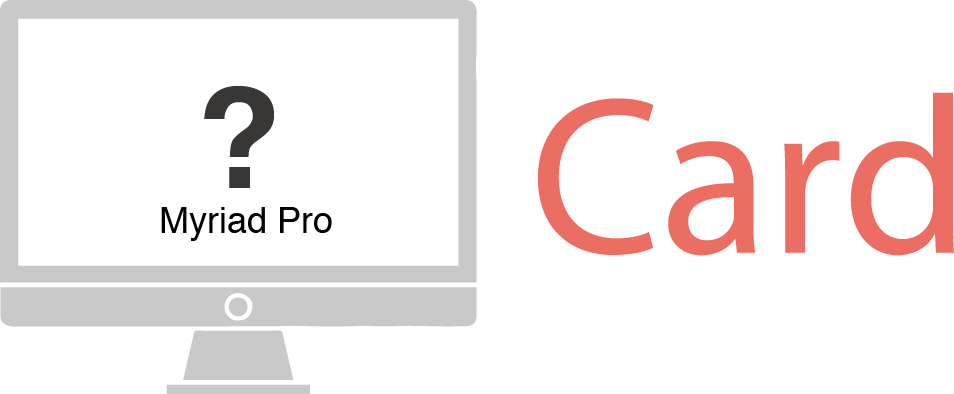
If you submit your data without outlining, and the printing workstation does not have the same fonts you used, the system will automatically substitute a different font.
This can cause:
- Changes in the shape or style of the text
- Layout shifting
- Garbled or corrupted characters
- A finished product that looks different from your intended design
How to Convert Text to Outlines (Adobe Illustrator)
Important: Before You Begin
Once text is converted to outlines, it can no longer be edited as text. For this reason, please save a backup of your editable file before outlining.
We recommend the following workflow:
- Save your original file as: “Filename_edit.ai” (editable version)
- Save a copy as: “Filename_print.ai” (for outlining and submission)
- Perform all outlining work in the print version.
Step 1: Unlock All Objects
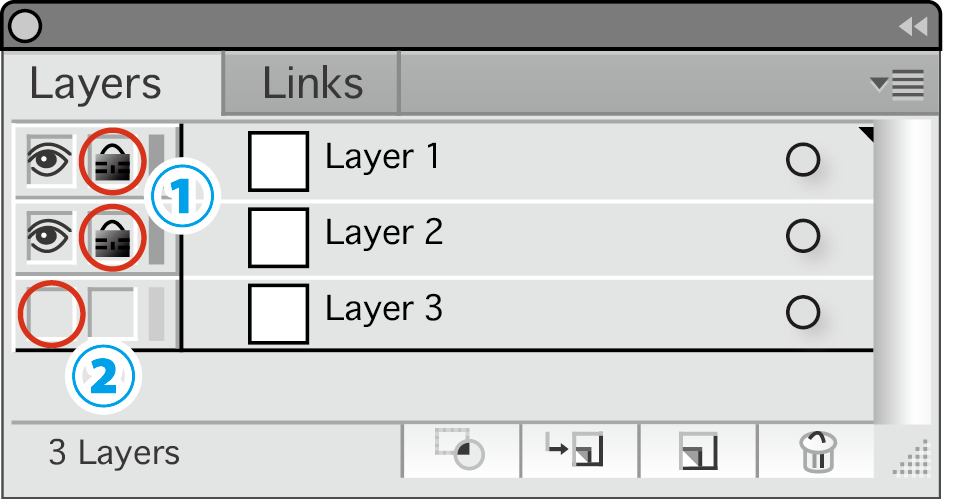
- If any layers or objects are locked, they will not be outlined.
- In the menu bar, go to Object → Unlock All.
- Also check the Layers panel to confirm no locks remain.
Step 2: Select All Objects
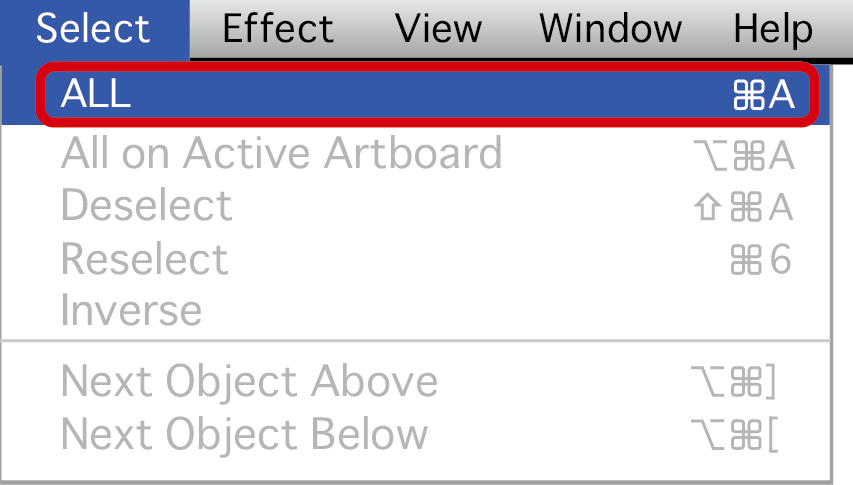
- Using the shortcut ensures nothing is missed.
Windows: Ctrl + A
Mac: Command + A
Step 3: Create Outlines
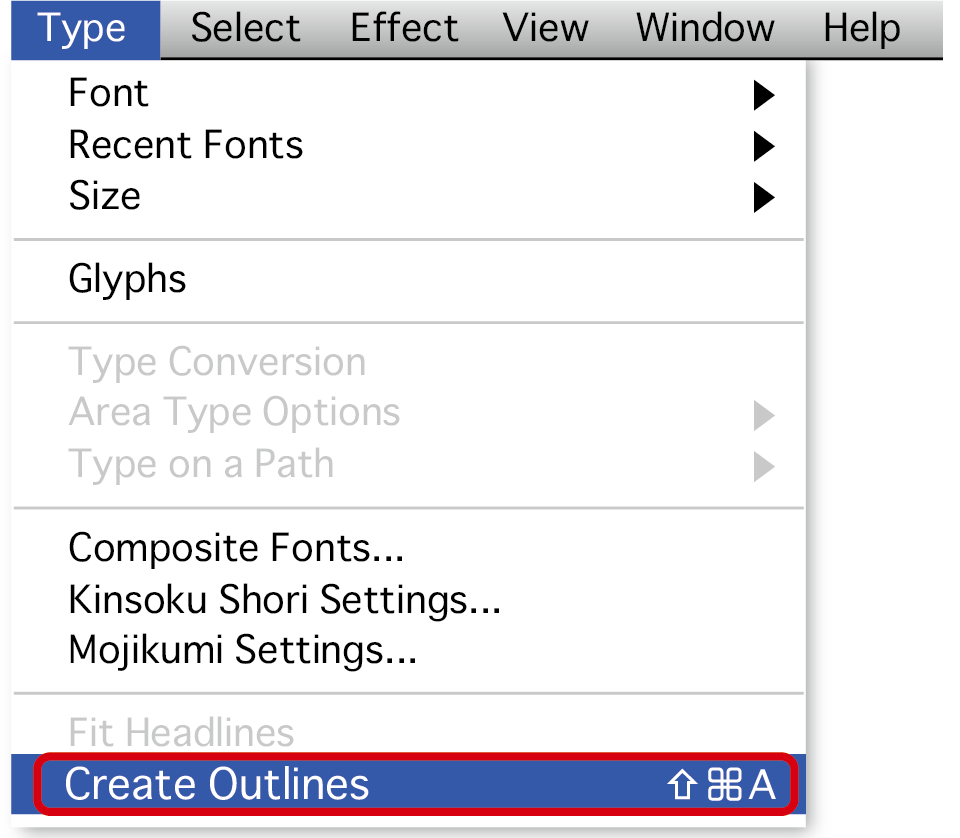
- With everything selected:
From the menu:
Type (or Text) → Create Outlines - Shortcut:
Windows: Ctrl + Shift + O
Mac: Command + Shift + O
All text will now be converted into vector shapes.
How to Check Whether Outlining Was Done Correctly
Because it can be difficult to judge visually, we recommend verifying the outline status directly in the file.
-
Open the Document Info panel
From the top menu, go to:
Window → Document Info -
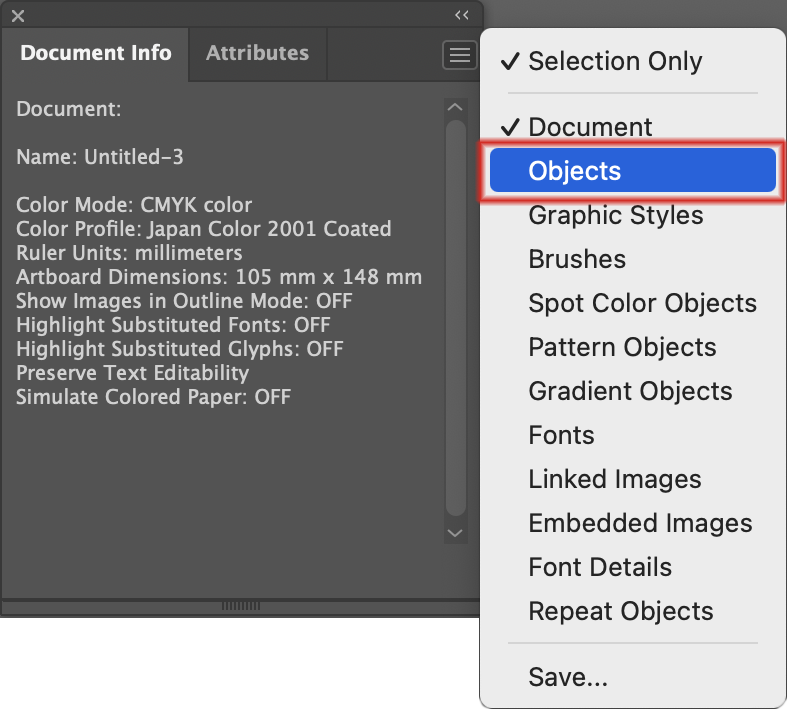
Switch the panel display to “Objects”
In the upper-right corner of the Document Info panel, open the menu and select:
Objects -
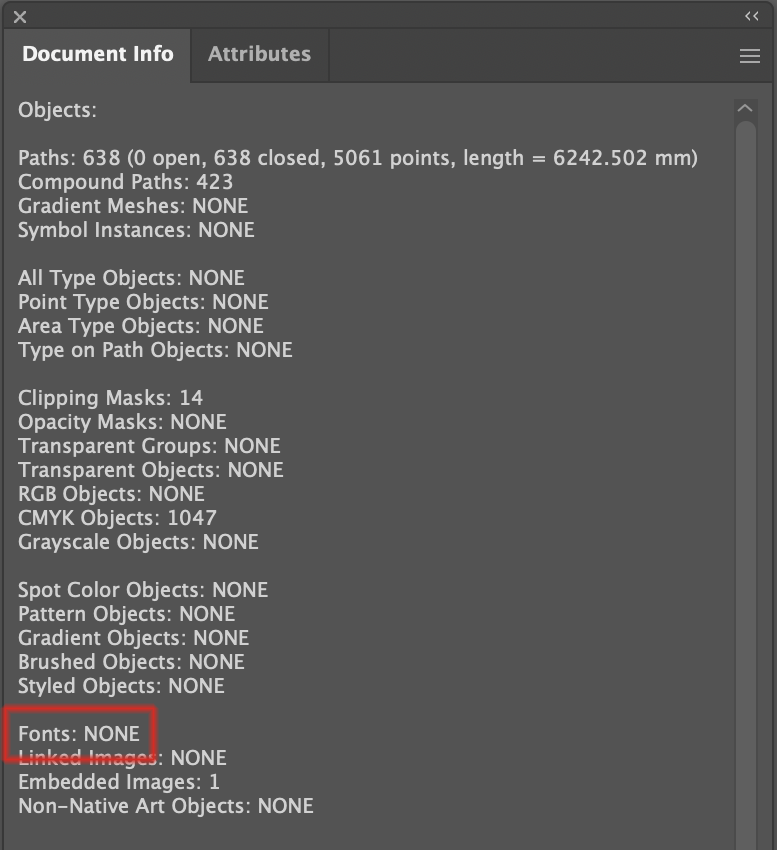
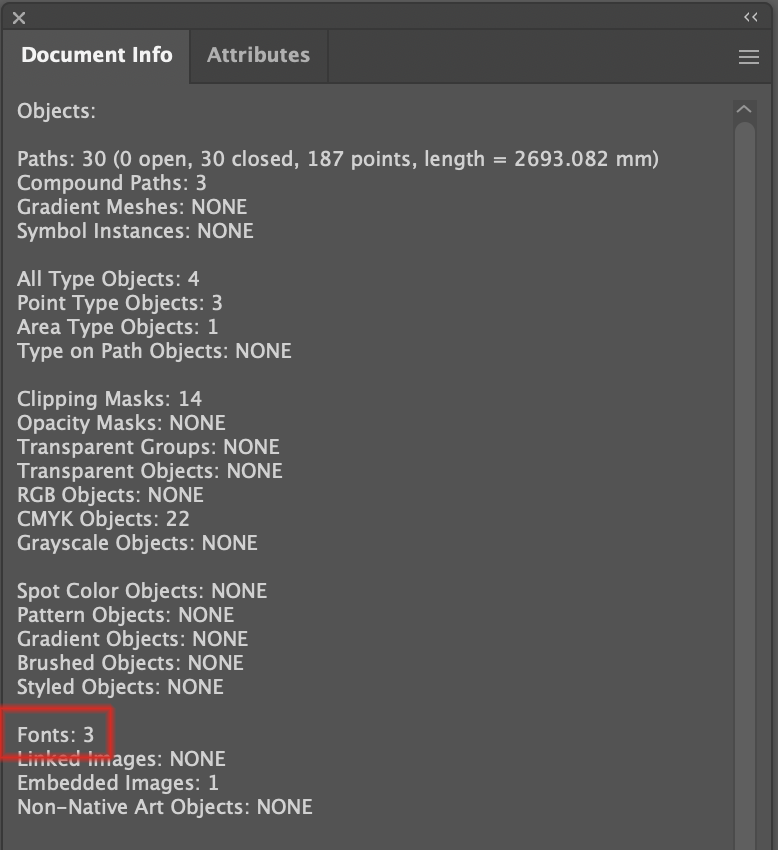
Check the “Fonts” field
Look for the Fonts entry in the list.
If outlining is done correctly, it should show:
Fonts: NONE
If any number other than “0” appears
This means there are still text objects remaining somewhere in the file.
Possible causes:
- Text that was not outlined
- Hidden layers containing text
- Locked objects
- Stray points containing text data
Please try the following:
Object → Unlock All
Object → Show All
Select all again and repeat Create Outlines.
Characters That Cannot Be Outlined
When using the following Illustrator features, please make sure to outline all text before applying them.
(Please note that data created using these features is excluded from our data-check service.)



