Basics of Creating Print Data for Folded Brochures

Creating Data
Designing for Folds
Why is creating data for folded brochures difficult?
You might think folding a brochure simply means dividing the paper into equal sections. However, paper has thickness, and because of that, dividing panels evenly does not result in a clean fold.
There are two common mistakes for first-time brochure designers:
1. Incorrect panel sizes
For folding styles like tri-fold, the inner panel must be slightly narrower.
If all panels are the same width, the inner panel will: buckle, bulge, or not fold cleanly.
2. Incorrect front/back layout
It is common to accidentally: reverse the order of panels on the back side, or misalign how the front and back correspond once folded.
Because folded pieces must work as a “3D object,” the panel arrangement on the back side is not the same left-to-right as the front
Understanding Front/Back Panel Relationships
When creating folded brochure data, most designers build the front side first and then move on to the back side. This is often where confusion occurs.
Key rule:
- The left panel on the front becomes the right panel on the back.
- Just like flipping an actual sheet of paper, the order reverses horizontally.
Example: Tri-Fold (Roll Fold)
A roll fold requires one inner panel to be slightly narrower so that it can fold neatly.
Front side layout:
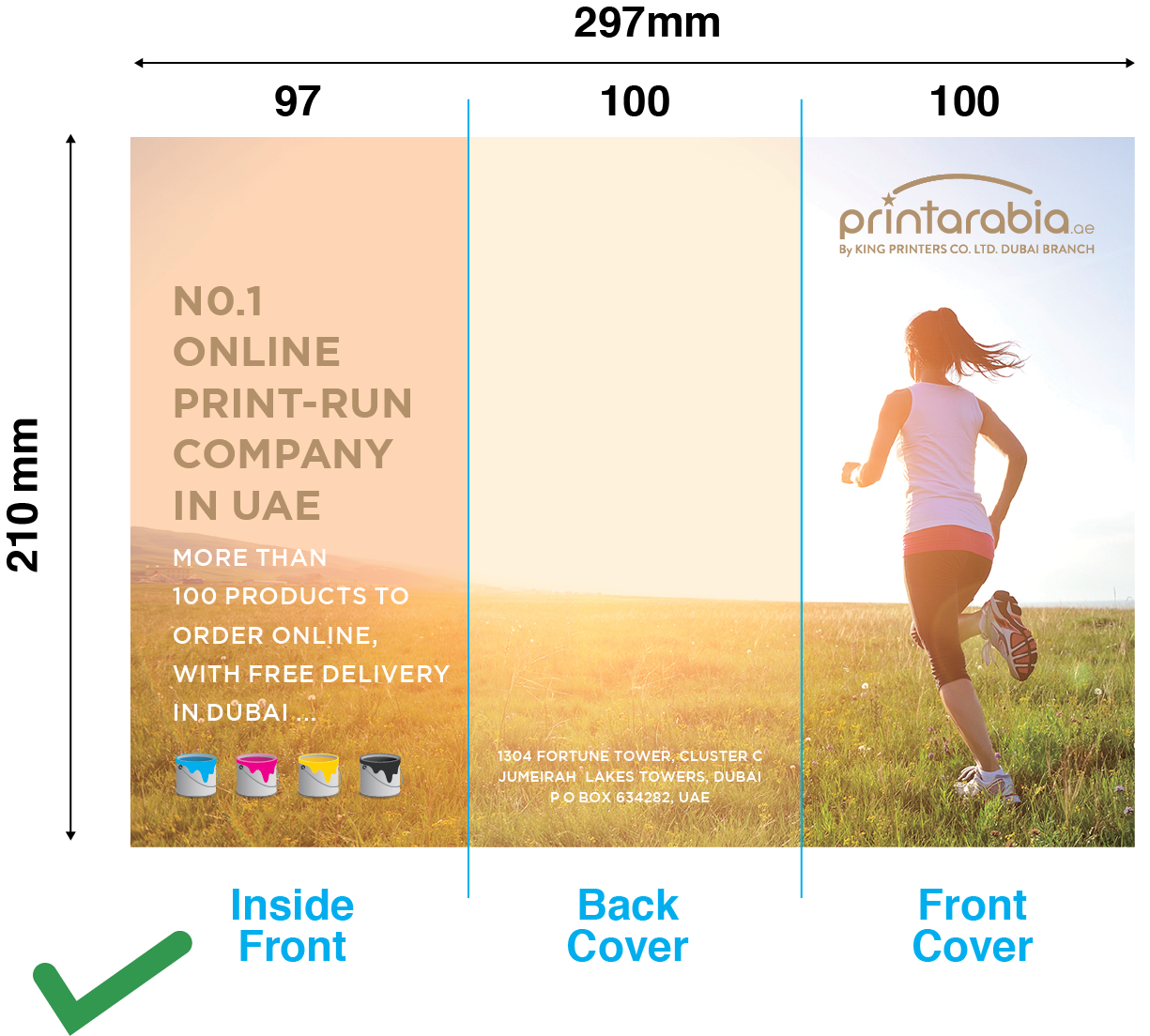
- Left: 97 mm (Inside flap)
- Center: 100 mm (Back cover)
- Right: 100 mm (Front cover)
Back side layout:
- Left: 100 mm (Body text panel)
- Center: 100 mm (Body text panel)
- Right: 97 mm (Inside flap — now on the right side)
The “shorter panel” on the front moves to the opposite side on the back.
If this is placed incorrectly, fold lines will cut through the design or the brochure will not fold cleanly.
Fold Types Covered in This Guide
This section explains how to set correct panel sizes for the three most common folds:
- Tri-Fold (Roll Fold)
- Z-Fold (Accordion Fold)
- Gate Fold
Clear diagrams and panel measurements will be provided so you can build accurate print-ready files with confidence.
Basic 3 Fold Types: How to Set Panel Sizes
(Examples shown using A4: 297 mm × 210 mm)
1. Tri-Fold (Roll Fold)
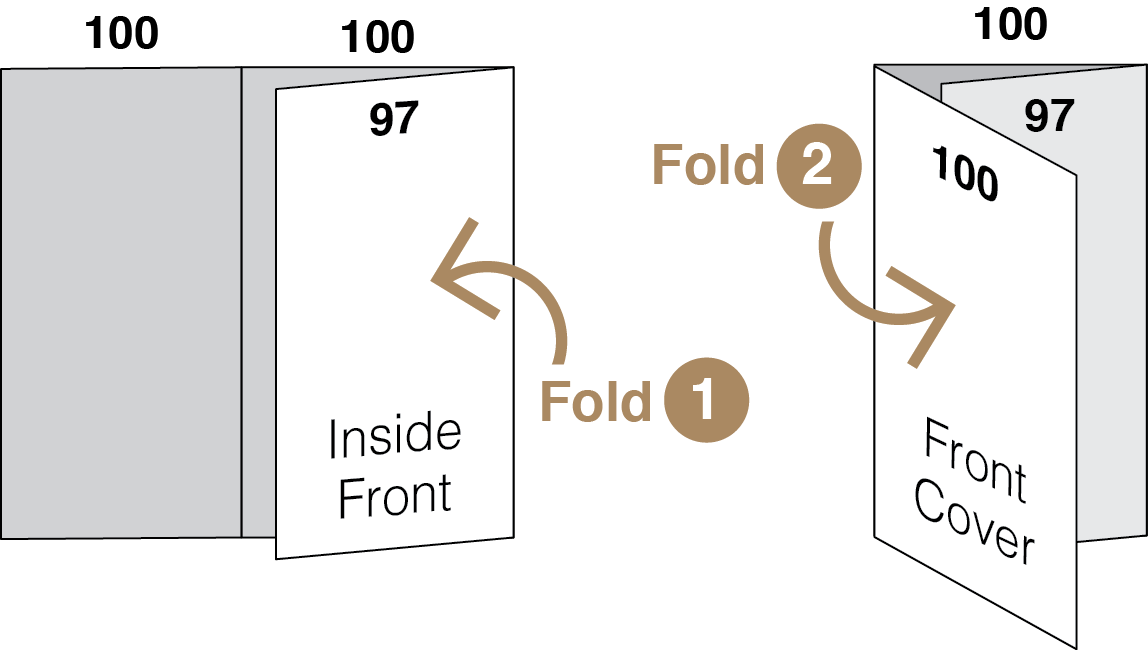
This is the most common folding style. One panel folds inward like a flap, so the inside panel must be slightly narrower than the others.
Why does one panel need to be narrower?
Because when the brochure is folded, the inner panel has to physically fit inside the other two panels.
If all panels are the same width, the paper will buckle or won’t fold neatly.
Recommended Panel Sizes (A4 landscape)
- Front cover panel: 100 mm
- Back cover panel: 100 mm
- Inside flap (the panel that folds in): 97 mm ← Important!
- Total width: 100 + 100 + 97 = 297 mm
This 97 mm inner panel is the standard “roll fold adjustment” and ensures clean folding with no bulging or overhang.

2. Z-Fold (Outside Three-Fold)
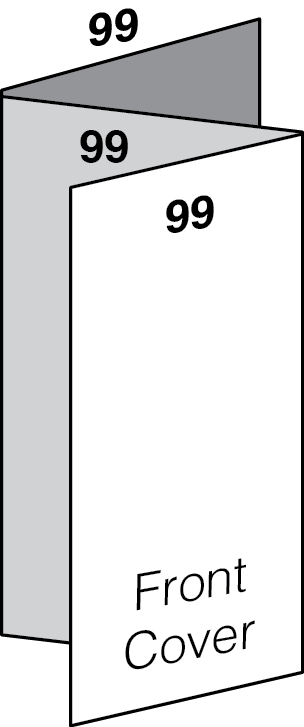
A Z-fold is named after the shape of the letter “Z.” Each panel folds in alternating directions, creating a zig-zag shape.
Key Characteristics
- No panel is tucked inside another.
- All panels can be the same width, which makes this one of the easiest fold types for beginners.
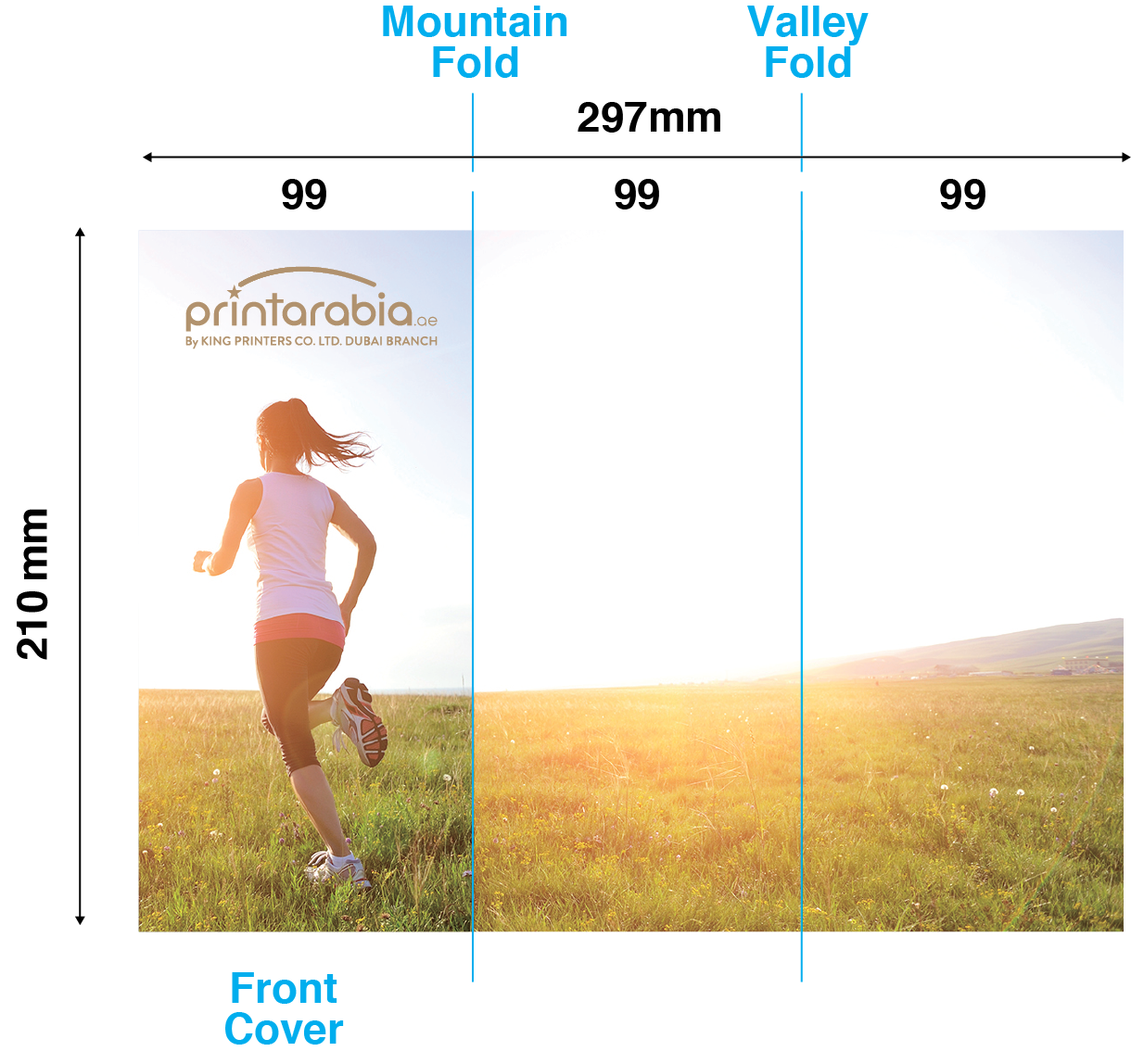
Recommended Panel Sizes (A4 landscape: 297 mm × 210 mm)
- Left panel: 99 mm
- Center panel: 99 mm
- Right panel: 99 mm
- Total: 99 + 99 + 99 = 297 mm
Tip:
Because all panels are equal, just divide the width into three equal sections.
This folding style is simple and avoids the complications of “inner” panels being narrower.
3. Gate Fold
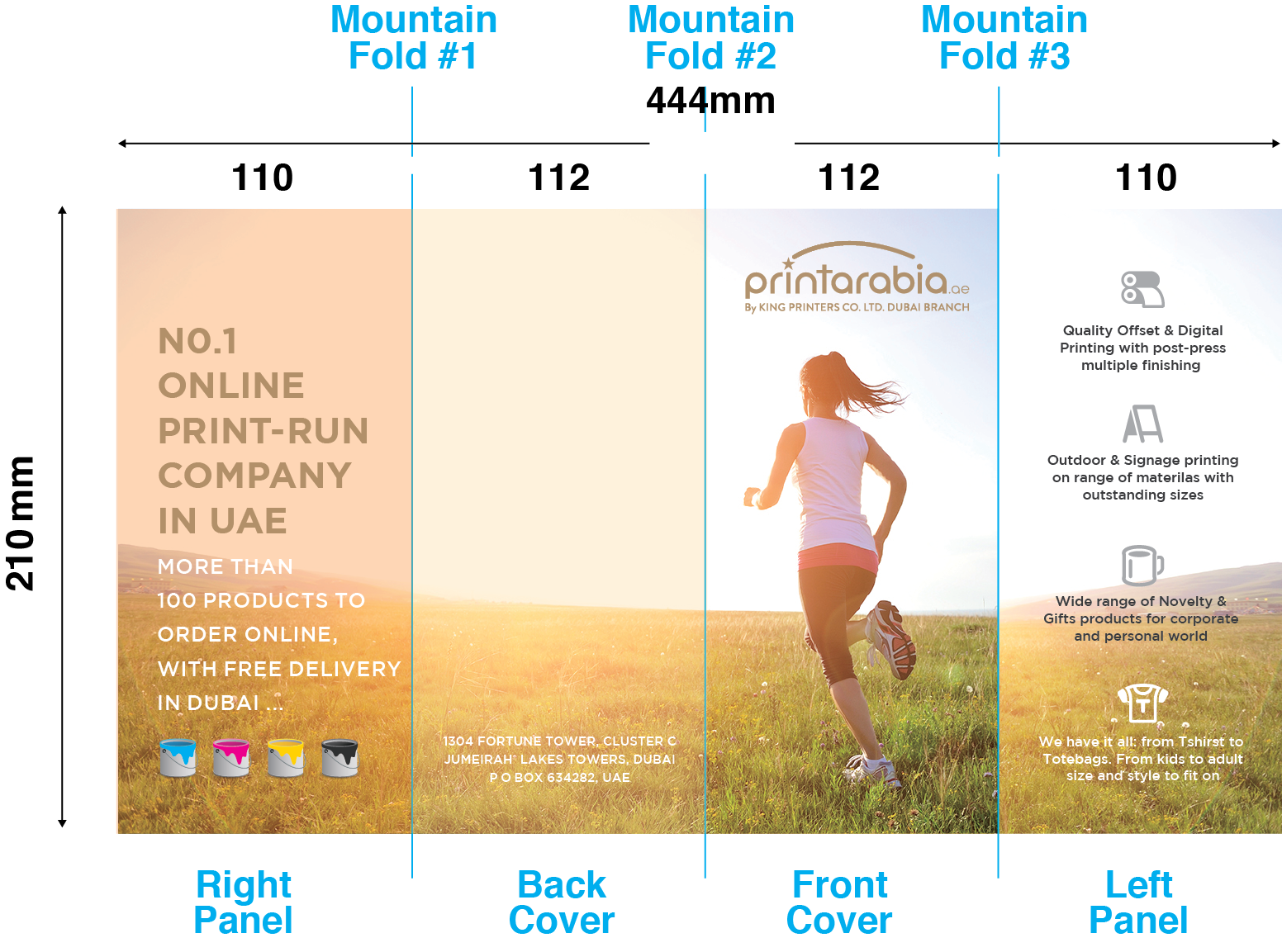
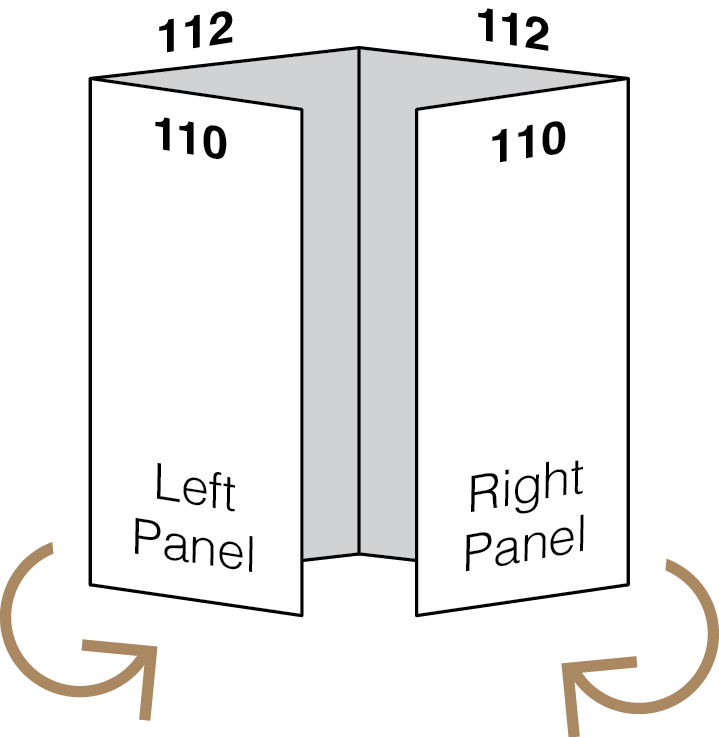
A Gate Fold opens like a pair of doors—hence the name. Both outer panels fold inward toward the center, and then the entire piece may be folded again depending on the style.
How to Set Up the Panel Sizes
For a standard gate fold:
- The two outer panels must be 2 mm narrower than the center panels.
- This ensures the folded edges don’t overlap or bulge.
Example (A4 landscape 297 mm wide):
- Left gate panel: (center panel width − 2 mm)
- Center panel: full width
- Right gate panel: (center panel width − 2 mm)
Important Submission Requirements
When preparing a gate-fold layout, be sure to:
- Mark top/bottom direction for both outside and inside.
- Indicate which panel is the front cover and back cover.
- Add fold position guides using Illustrator guide lines or visible lines (not printed).
- Make sure the designer can clearly understand how the brochure opens and folds.
Even if your job is front side color / blank back side, you must still label the “Front Cover” and “Back Cover”. This prevents confusion during the folding process.
Required Information for Folded Brochure Data
When submitting folded brochure artwork, please make sure the following items are clearly indicated:
- Orientation for both sides
Top/Bottom (head/foot) direction for the outside and inside. - Cover / Back Cover labels
Clearly mark which panel is the front cover and which is the back cover. - Mountain fold / Valley fold instructions (outside side only)
Indicate how each fold should be applied. - Fold guides
Include visible guide lines showing the exact fold positions. - Photoshop users:
Please write “Front Cover / Back Cover,” “Top/Bottom,” and “Mountain/Valley fold (outside only)” directly on your sample preview image.
All fold widths must be equal unless otherwise specified for the specific fold type.
If you are submitting Photoshop data
Please write the following directly onto the sample image (or a separate instruction layer):
- “Front Cover / Back Cover”
- “Top / Bottom” orientation



